
Templates
VimStar ships with several templates for exporting Markdown files into various formats:
- Article/Handout
- Business Letter
- Book
- Report
- Submission Format
- Planner Page
More templates are planned; if you have an idea for a template, submit an issue for it.
To make these work, install Typst and Pandoc. The templates are formatted via Typst, and Pandoc handles the conversions from Markdown to Typst to PDF.
Customizing Templates
You can override any built-in template without modifying the VimStar installation.
- Create a directory for your custom templates (anywhere you like):
mkdir -p ~/.VimStar/user-templates - Tell VimStar where to find them by adding this to your
vimstar-user.lua:vim.g.vimstar_user_templates = "~/.VimStar/user-templates" - Mirror the default structure under that directory and place your customized versions:
~/.VimStar/user-templates/
├── typst/
│   ├── book.typ
│   ├── report.typ
│   └── ...
└── odt/
    ├── shunn-modern-reference.odt
    └── shunn-frontmatter.lua
When you run a template command (e.g., <Space>pp), VimStar checks your custom directory first. If a custom version exists, it uses that; otherwise it falls back to the built-in template. The user-templates/ directory is git-ignored so your changes are never overwritten by git pull.
You can put the custom directory anywhere — ~/my-templates, /shared/team-templates, etc. Point vim.g.vimstar_user_templates at it, and you’re ready to go.
Using Templates
Templates format your Markdown document in useful ways. Type one command in VimStar, and your Markdown file is turned into an article, formatted for submission to a publication, formatted for use with a paper-based planner, or laid out as a paperback book. You write your Markdown as you would any Markdown file; the only difference is in the YAML headers.
Exporting your Markdown file to a PDF using the templates requires using the <Space>p (Print Controls) menu. Commands for the various templates appear there. Note that if you’re using images in your Markdown files, before exporting via a template, change the working directory to the location of the currently open file with <Space>kl.
YAML Header Snippets
Rather than typing out an entire YAML header from memory, VimStar ships with snippets that insert a pre-filled header for each template. Start typing a trigger in an empty Markdown file, select it from the completion menu, and the whole front matter appears with placeholder values. Tab through the placeholders to fill in your own details; each tab moves you to the next field, and the final tab places your cursor in the body of the document.
| Trigger | Template | Fields |
|---|---|---|
yaml-article |
Article/Handout | title, subtitle, author, body-font, heading-font |
yaml-letter |
Business Letter | date, from-name, from-address-1, from-address-2, to-company-name, to-name, to-address-1, to-address-2, salutation, complimentary-close |
yaml-book |
Book | title, subtitle, author, copyright-holder, dedication, isbn, body-font, heading-font |
yaml-report |
Report | title, subtitle, author, left-header, right-header, paper, body-font, heading-font |
yaml-submission |
Submission Format | title, author, surname, shorttitle, wordcount, name, address, city, phone, email, affiliation |
yaml-planner |
Planner Page | title, subtitle, author, body-font, heading-font |
Article/Handout
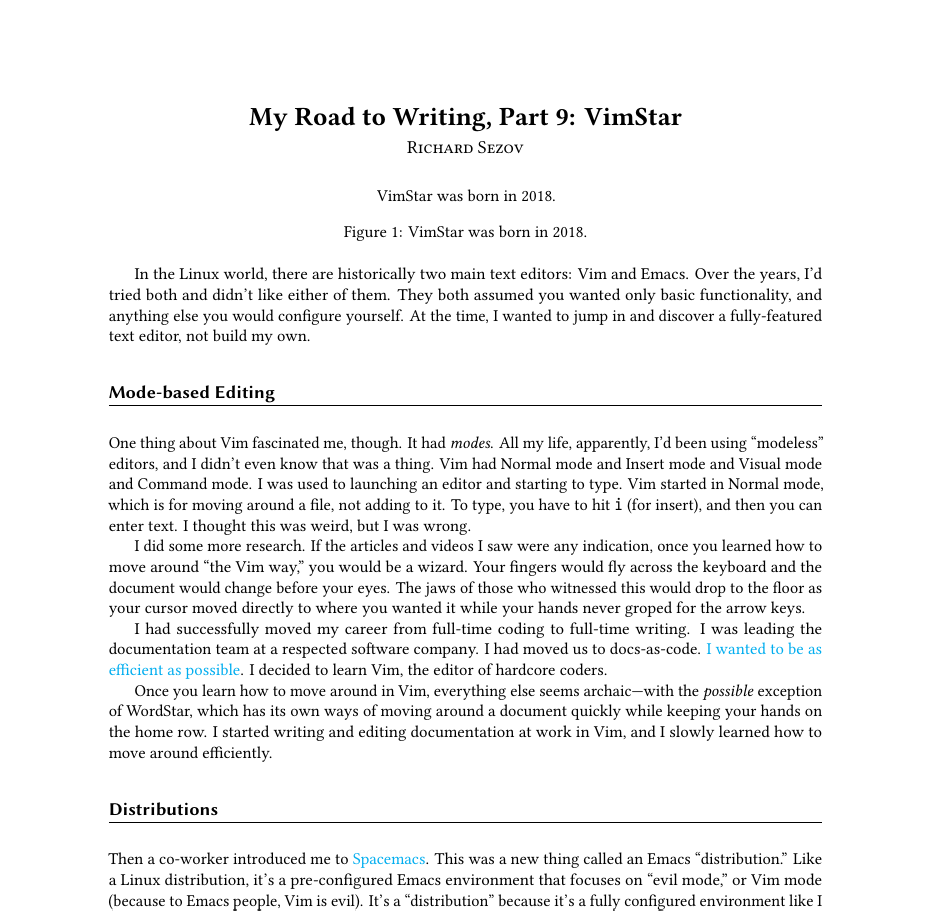
This, along with the planner, is the simplest template. At the top of your Markdown file, place a YAML header containing these fields:
---
title: Your Title
subtitle: Your Subtitle
author: Firstname Lastname
body-font: "Libertinus Serif"
heading-font: "Libertinus Sans"
---

The rest of your Markdown file goes here. Use headings and other Markdown features normally.
The optional body-font header sets the serif font used for the body text and the title block. The optional heading-font header sets the sans font used for the headings (levels 1-4). Both are used only by the Typst export; you can leave them out of the YAML header entirely if you prefer the defaults.
If you leave a header out or name a font that isn’t installed on the computer doing the compilation, the template walks down a fallback list of common, cross-platform fonts (Windows, macOS, and Linux) and uses the first one it can find, so the PDF always renders with a sensible typeface. If you set a font that is installed, it takes precedence over the built-in defaults. Note that Typst shows warnings when fonts aren’t installed; these are normal and don’t affect the PDF output.
When you’re ready to produce your article or handout, in Normal mode hit <Space>pp. It produces a document suitable as an article or handout:
Business Letter
The business letter template formats your Markdown file as a simple business letter on US-Letter paper. The body of the letter is just the text of your Markdown document; all of the letterhead, addressing, salutation, and signature details come from YAML headers:
---
date: "September 9, 2026"
from-name: "Jane Doe"
from-address-1: "123 Main Street"
from-address-2: "Springfield, IL 62701"
to-company-name: "Acme Corporation"
to-name: "John Smith"
to-address-1: "456 Oak Avenue"
to-address-2: "Chicago, IL 60601"
salutation: "Dear Mr. Smith"
complimentary-close: "Sincerely"
---

Thank you for taking the time to review my application. I look forward to hearing from you.

Please contact me if you need any further information.
This produces the classic business-letter layout:
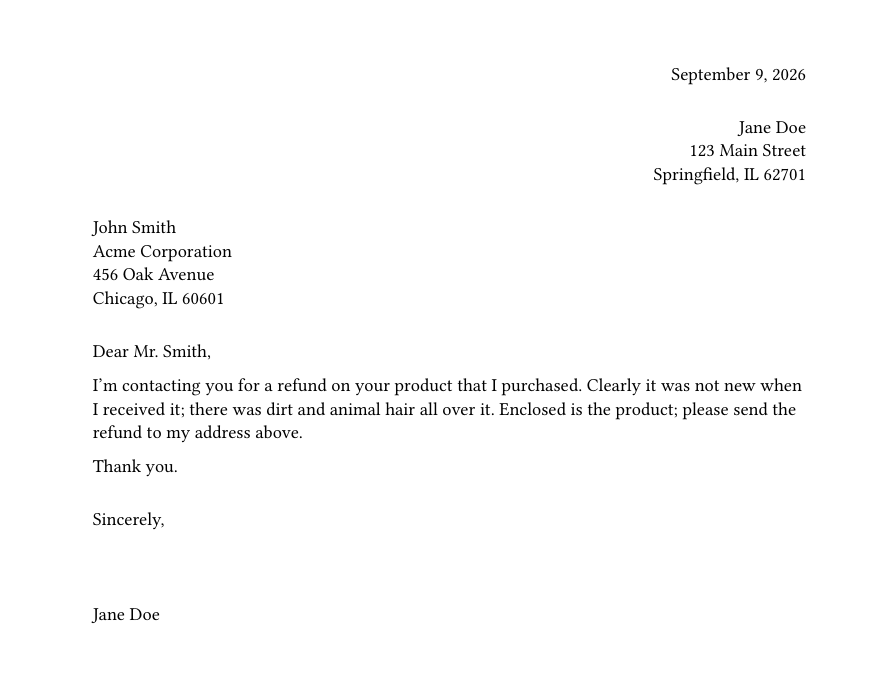
To use it, hit <Space>pl. Note that you can write the date in any way you like-—-date is just a string-—-and any field you leave out is skipped, so minimalist letters with fewer headers render fine.
Planner Page
The Planner Page template takes the exact same YAML headers as the Article/Handout, including the optional body-font and heading-font typefaces, but it lays out the page horizontally in a booklet format:
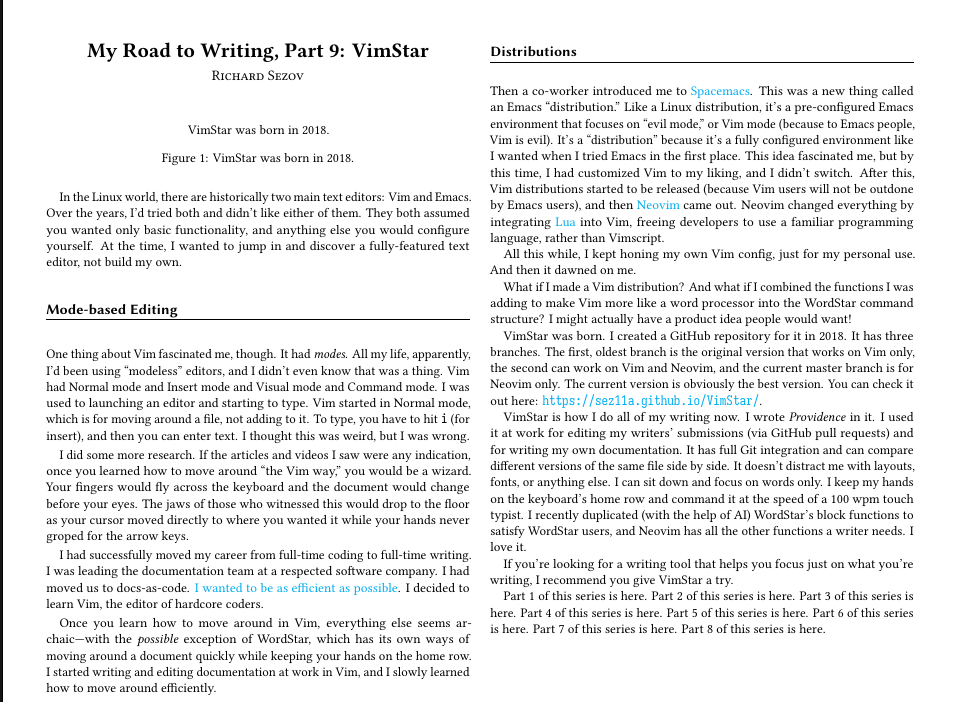
This way, you can cut the page in half or fold it and stick it in your paper-based planner. To use the planner page, use <Space>pe.
Book
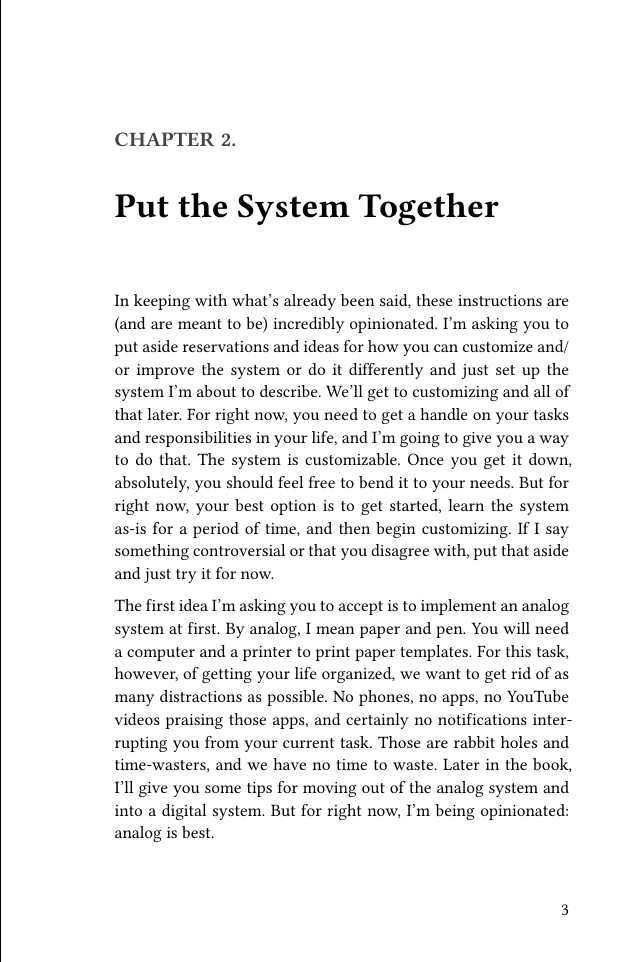
The book template formats your document as a digest-sized paperback book. If you are a writer who self-publishes your work, you could write your entire novel in VimStar, use this template to lay it out, and upload it to Amazon, IngramSpark, Lulu, or any other self-publishing platform.
The book template accepts the same YAML headers as the Article/Handout (title, subtitle, author), with optional headers for an alternate copyright holder, the dedication, the ISBN, and the book typefaces:
---
title: "My Great Book"
subtitle: "A Story of Greatness"
author: "Dude Dud"
copyright-holder: "Publisher Name"
dedication: "For my family, who endured the writing process."
isbn: "978-1234567890"
body-font: "Libertinus Serif"
heading-font: "Libertinus Sans"
---

# Chapter One

The rest of your Markdown file goes here. Each level-1 heading begins a new chapter.
The dedication, if present, appears on its own page after the copyright page. The ISBN, if present, appears on the copyright page. If copyright-holder is provided, it is used instead of author on the copyright page.
body-font sets the serif font used for the body text.
heading-font sets the sans font used for the chapter headings (level 1), the sub-headings (levels 2–4), the figure captions, and the running header.
Both are optional. The value is the name of a font installed on the computer doing the compilation. If you leave a header out or name a font that isn’t installed there, the template walks down a fallback list of common, cross-platform fonts (Windows, macOS, and Linux) and uses the first one it can find, so the PDF always renders with a sensible typeface. If you set a font that is installed, it takes precedence over the built-in defaults. Note that Typst shows warnings when fonts aren’t installed; these are normal and don’t affect the PDF output.
Report
The report template formats your Markdown file as a formal document: an RFP response, a white paper, or any other report you need to deliver on letter or A4 paper. It opens with a title page, followed by a front matter section with a table of contents. The main body then begins on a new page with a running header and every level-1 heading starting a new chapter, set off by a horizontal rule.
The report accepts the same title, subtitle, and author headers as the other templates, plus headers specific to the report layout:
---
title: "Project Phoenix"
subtitle: "Response to Request for Proposal RFP-2026-014"
author: "Jane Doe"
left-header: "Project Phoenix"
right-header: "RFP-2026-014"
paper: "us-letter"
body-font: "Libertinus Serif"
heading-font: "Libertinus Sans"
---

# Introduction

The rest of your Markdown file goes here. Each level-1 heading begins a new chapter.
The optional left-header and right-header headers set the text printed on the left and right sides of the running header. They are suppressed on each chapter’s opening page.
The optional paper header sets the page size. Use us-letter for US Letter or a4 for A4; if you leave it out, the template uses A4.
body-font sets the serif font used for the 12pt body text, and heading-font sets the sans font used for the headings, the running header, and the figure captions. Both are optional and follow the same fallback behavior as the other templates.
When you’re ready to produce your report, hit <Space>pr.
Submission Format
If you’re a writer who submits stories for publication, this template can format your story for you perfectly. It needs a lot more metadata to do that, in the form of these YAML headers:
---
title: "A Great Story"
author: "Dude Dud"
surname: "Dud"
shorttitle: "Story"
wordcount: "about 12,000 words"
name: "Dudeness M. Dud"
address: "123 Main Street"
city: "Anywhere, XX  00000"
phone: "123-456-7890"
email: "dude@place.com"
affiliation: ""
---
Set these headers and then hit one of the commands below. This produces a manuscript in the proper format for a publication:
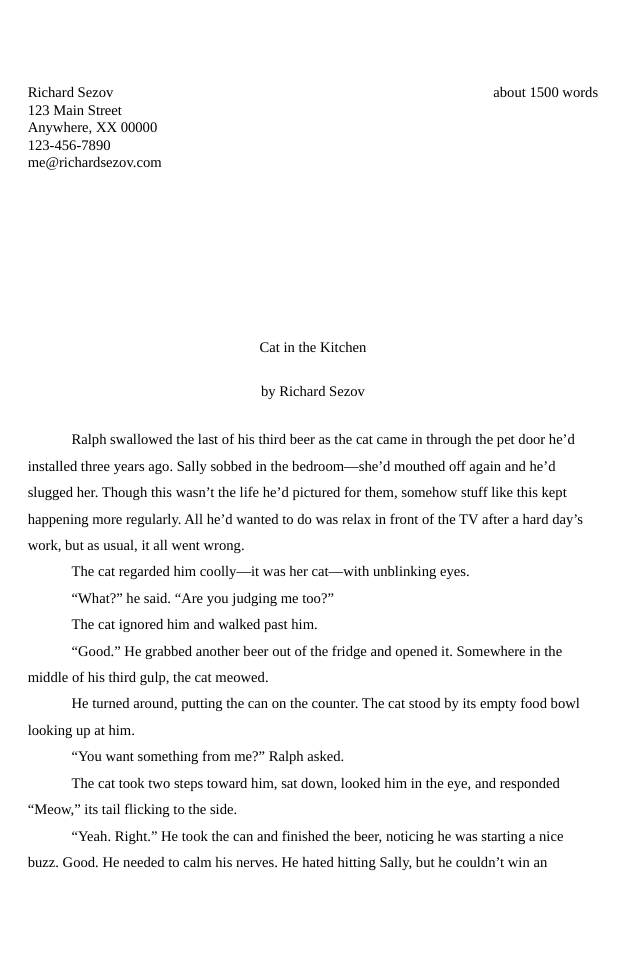
| Command | Output |
|---|---|
Space-ps |
Submission in PDF format |
Space-pS |
Submission in .odt (LibreOffice) format |
Submission in .docx format (exported from LibreOffice) coming soon!